SuperLab’s leasing feature is like a built-in library checkout system, but instead of checking out books, you can provide SuperLab seats to others without worrying about losing them.
Your license must include at least two seats before you can issue a lease.
The general picture:
To issue a lease:
SuperLab may ask you for your credentials and then prompt you for the duration of the lease. There is tremendous flexibility in how you can specify the lease period:
Once you have specified the lease period, click on the Next
When you click on the Copy to Clipboard button, this is what the copied text looks like:
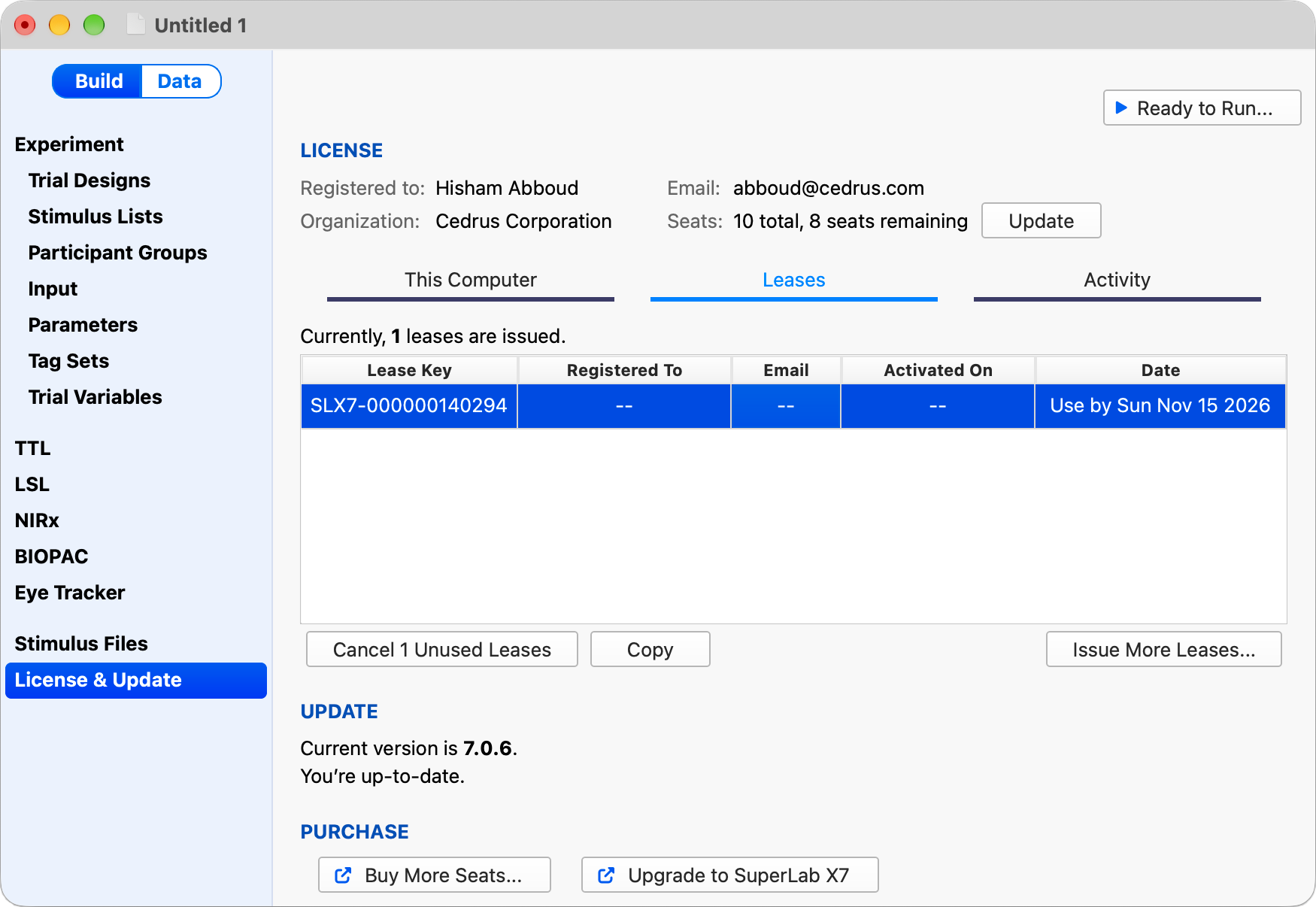
SLX7-000000140294
To activate SuperLab, enter the lease key, and then enter janedoe@gmail.com when prompted for the License Owner's Email.
Simply paste it in an email or text.
SuperLab will let you see which of your outstanding leases have been activated and when they expire. If a lease has not been activated yet, you can cancel it altogether.


PRODUCTS
SUPPORT
STAY IN TOUCH


© Copyright 2026 Cedrus Corporation, P.O. Box 6309, San Pedro, CA 90734 - USA
Phone: +1-310-548-9595. Send us an email
qwerasdf