SupportRiponda Determining or Changing The Driver’s COM Port Setting
Summary
When installing the USB driver, Windows automatically chooses which COM port number to assign to the new virtual serial port, e.g. COM4 or COM5. This number may not suit some applications. This document shows you how to find out what your device’s COM port is and how to change it.
Determining the COM Port Number
Using the Device Manager, you can both view and change the COM port setting.
Open the Device Manager.
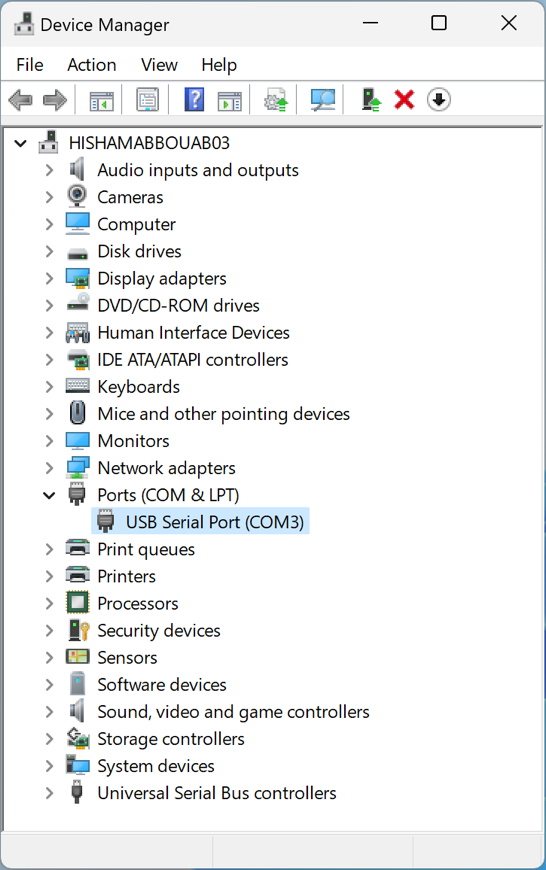
Double-click on “Ports (COM & LPT)” to expand that section. A list of all available serial and parallel port devices will appear. The window will look something like what’s on the right.
Your Cedrus USB product should appear in the list as serial USB devices, e.g.“USB Serial Port” along with the COM port number that was assigned to it by Windows. To double-check that the entry in the “Ports (COM & LPT)” section is your Cedrus response pad, unplug the response pad, wait a few seconds, and re-plug it. As you do this, you should see the entry under “Ports (COM & LPT)” disappear and then reappear.
Changing Your COM Port Number
To change the COM port number that’s been assigned to your Cedrus USB product:
With the mouse, right-click on the product name with the mouse. A menu will appear.
On the menu, click on Properties. A dialog (window) appears.
Click on the Port Settings tab.
Click on the Advanced button. A second dialog appears.
On this new dialog, there is “COM Port Number” option near the top. Change it to suit your needs and click on OK to close the dialog. You might get a warning message about other programs using the device and whether you wish to continue. Click on Yes.
Click on OK again to close the first dialog.
Close the Device Manager. Note that the Device Manager might still show the old COM port number. If you close it and re-open it, you will then be able to see the new COM port number listed.