For universal compatibility, you can set your Riponda response pad in keyboard mode. In that mode, the response pad becomes indistinguishable from your computer keyboard and you can use it with any software that accepts keyboard input.
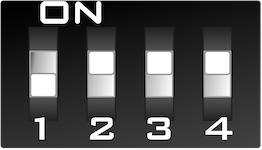
There are four switches next to the USB connector on the back of the response pad. When shipped, all four switches are in the up position. To set it to keyboard mode, flip switch 1 down, as shown on the right.
Important: Riponda “reads” the switch positions only when it is first turned on. For changes to take effect after you flip a switch, you need to unplug the USB cable from the response pad, wait a few seconds, and then plug it back in.
The response pad supports four different protocols, meaning that it can send the data to the computer in four different formats. The chosen protocol is determined by switches 2 and 3.
This protocol provides the most information, including timing – the only protocol to do so. You can use a light sensor (not included) to detect the onset of a stimulus on the screen and reset the internal timer in the response pad. To use this protocol, switches 2 and 3 must both be up. Here is sample output when pressing the 8 keys sequentially on a Riponda Model E:
A P 1 15630
A R 1 15896
A P 2 16650
A R 2 16843
A P 3 18588
A R 3 18896
A P 4 19875
A R 4 20165
A P 5 20751
A R 5 21042
A P 6 22627
A R 6 22949
A P 7 23641
A R 7 23906
A P 8 24627
A R 8 24862
Each key press or key release will produce a line of output, with tab-delimited information consisting of:
To use, set switch 2 down and switch 3 up. The response pad emits output only when a key is pressed. Here is sample output when pressing the 8 keys sequentially on a Riponda Model E:
12345JKL
To use, set switch 2 up and switch 3 down. The response pad emits output only when a key is pressed. Here is sample output when pressing the 8 keys sequentially on a Riponda Model E:
abcdefgh
To use, set switches 2 and 3 down. The response pad emits output when a key is pressed or released. Here is sample output when pressing the 8 keys sequentially on a Riponda Model E:
1!2@3#4$5%6^7&8*
The response pad sends 1 through 8 when a key is pressed, and sends the shifted key equivalent when the key is released. For example, you will get a “1” when pressing key 1 and “!” when releasing key 1. The exclamation point “!” is what you get on the keyboard if you held down the Shift key while pressing 1.
Last Revision: Aug 15, 2023
PRODUCTS
SUPPORT
STAY IN TOUCH


© Copyright 2026 Cedrus Corporation, P.O. Box 6309, San Pedro, CA 90734 - USA
Phone: +1-310-548-9595. Send us an email
qwerasdf