You can use SuperLab 6 or X6 for Windows to create a downloadable package that can be used on Windows computers. To create a package that can run on Mac, you need to use SuperLab 6 for Mac. A SuperLab Remote subscription covers both platforms.
After downloading SuperLab Remote, it is important that you follow ALL the instructions.
In Microsoft Edge and Chrome, the downloaded file will appear in the bottom left of the browser window. Click on the filename itself:
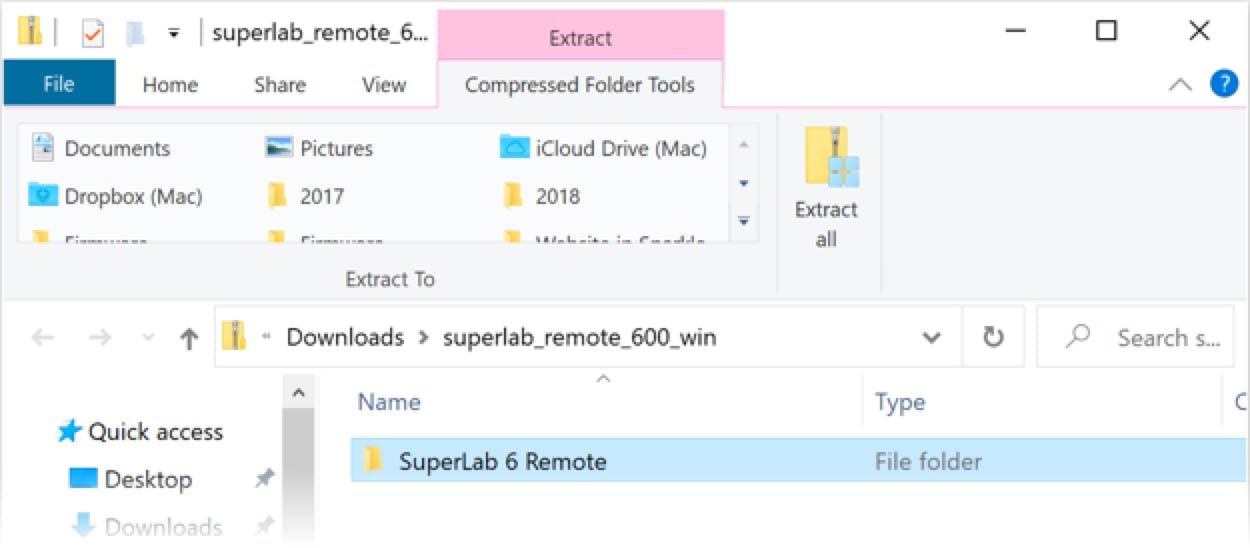
Edge or Chrome will open the zipped file and show you its contents, a single folder named “SuperLab 6 Remote”:
Drag this folder to another location; this will make Windows extract the contents of the “SuperLab 6 Remote” folder and copy them to that location.
In Firefox, you will be asked to save or open the file; choose the option to open it. This will automatically open the zipped file and show you its contents, a single folder named “SuperLab 6 Remote”, like in the screenshot above. Drag this folder to another location; this will make Windows extract the contents of the “SuperLab 6 Remote” folder and copy them to that location.
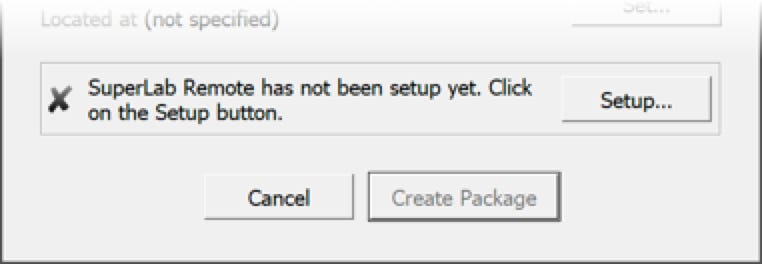
In SuperLab 6, click on the File menu and select Create a SuperLab Remote Package…. In the dialog that appears, click on the Setup… button.
You will now see different options.
This setup needs to be done only once.
Your remote participants will need some assistance. You can use and customize the following instructions:
⬅︎ Back to SuperLab Support main page
Last Revision: Aug 10, 2020

IMPORTANT: do not run the “SuperLab Remote” app directly. The downloaded file is for use by SuperLab 6 when creating a downloadable experiment package for your participants.

PRODUCTS
SUPPORT
STAY IN TOUCH


© Copyright 2023 Cedrus Corporation, P.O. Box 6309, San Pedro, CA 90734 - USA
Phone: +1-310-548-9595. Send us an email. See privacy policy.
qwerasdf